home / skills / rodydavis / skills / flutter-and-xcode-cloud
This skill guides you to configure Xcode Cloud for building and deploying a Flutter app to TestFlight and the App Store.
npx playbooks add skill rodydavis/skills --skill flutter-and-xcode-cloudReview the files below or copy the command above to add this skill to your agents.
---
name: how-to-build-a-flutter-app-on-xcode-cloud
description: Learn how to set up Xcode Cloud to build and deploy your Flutter application to TestFlight and the App Store with this step-by-step guide.
metadata:
url: https://rodydavis.com/posts/flutter-and-xcode-cloud
last_modified: Tue, 03 Feb 2026 20:04:22 GMT
---
# How to build a Flutter app on Xcode Cloud
In this article we are going to go over how to setup [Xcode Cloud](https://developer.apple.com/xcode-cloud/) to build your [Flutter](https://flutter.dev/) application for [TestFlight](https://developer.apple.com/testflight/) and the [AppStore](https://developer.apple.com/app-store/).
## Step 1
Before we begin Flutter needs to be installed, and you can check by running the following:
```
flutter doctor -v
```
After it is installed we can run the following command to create and open our Flutter project (skip down to step 2 if adding to an existing app).
```
mkdir flutter_ci_example
cd flutter_ci_example
flutter create .
```
If you need more help with creating the first project you can check out my previous blog post [here](https://rodydavis.com/posts/first-flutter-project/).
After the project is created open it in your favorite code editor.
```
code .
```
## Step 2
The generated files should look like the following:
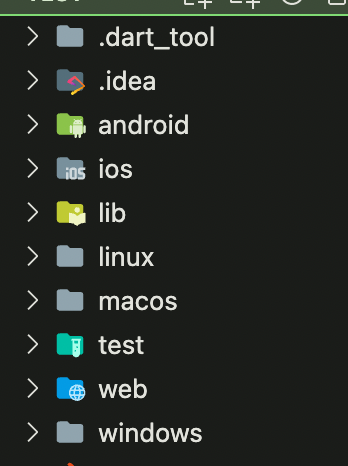
Create a new file at `ios/ci_scripts/ci_post_install.sh` and update it with the following:
```
#!/bin/sh
# Install CocoaPods using Homebrew.
brew install cocoapods
# Install Flutter
brew install --cask flutter
# Run Flutter doctor
flutter doctor
# Get packages
flutter packages get
# Update generated files
flutter pub run build_runner build
# Build ios app
flutter build ios --no-codesign
```
This is a file Xcode Cloud needs to run after the project is downloaded. We need to install [cocoapods](https://cocoapods.org/) for any plugins we are using and Flutter to prebuild our application.
Then run the following command which will make the script executable:
```
chmod +x ios/ci_scripts/ci_post_clone.sh
```
## Step 3
Open up the iOS project in Xcode by right clicking on the iOS folder and selecting "Open in Xcode".
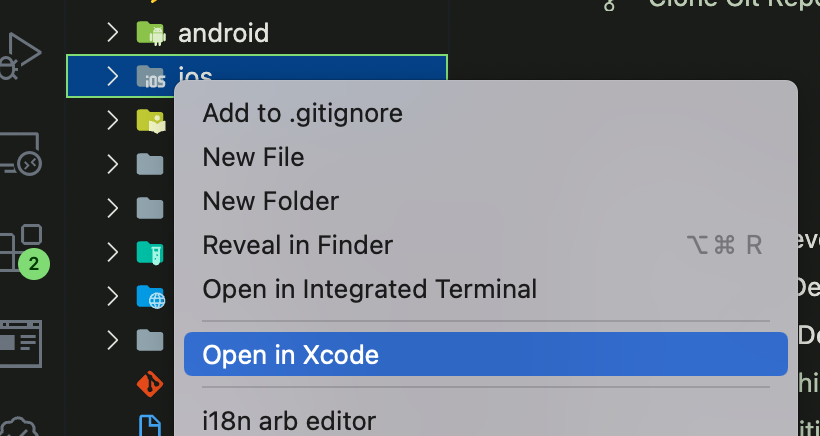
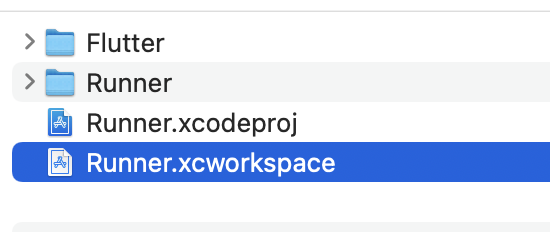
You can also open the project by double clicking on the `ios/Runner.xcworkspace` file.
Make sure you have the latest version of Xcode Cloud install and that you have [access to the beta](https://developer.apple.com/xcode-cloud/beta/). Create a new workflow by the menu `Product > Xcode Cloud > Create Workflow`:
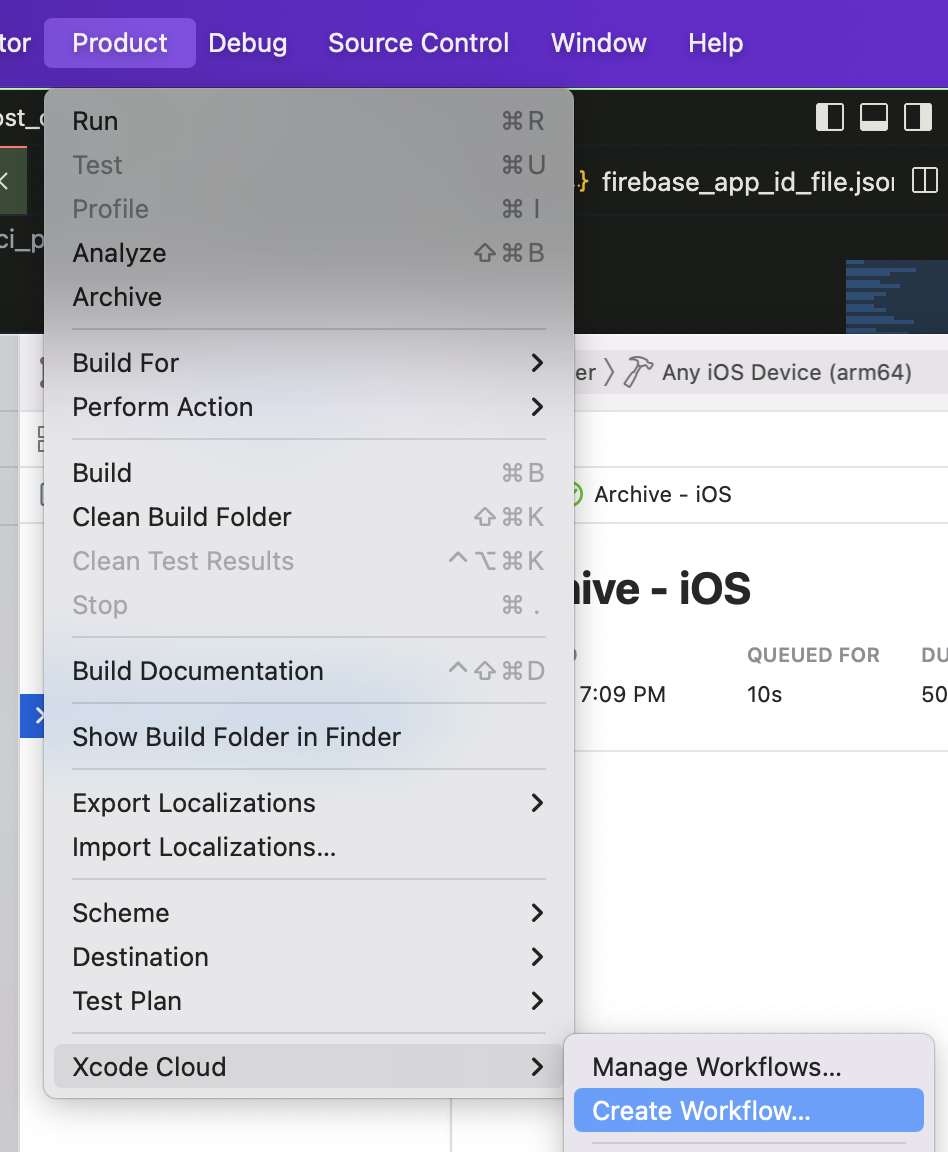
Follow the flow to add the project and choose which type of build you want.
Make sure to remove MacOS as a target in the workflow by selecting `Archive - MacOS` and the delete icon on the top right.
If you want to build and release the MacOS app you will need to do that with another script in the macos folder and a workflow in that Xcode workspace.
You can create the file `macos/ci_scripts/ci_post_clone.sh` and update it with the following:
```
#!/bin/sh
# Install CocoaPods using Homebrew.
brew install cocoapods
# Install Flutter
brew install --cask flutter
# Run Flutter doctor
flutter doctor
# Enable macos
flutter config --enable-macos-desktop
# Get packages
flutter packages get
# Update generated files
flutter pub run build_runner build
# Build ios app
flutter build ios --no-codesign
```
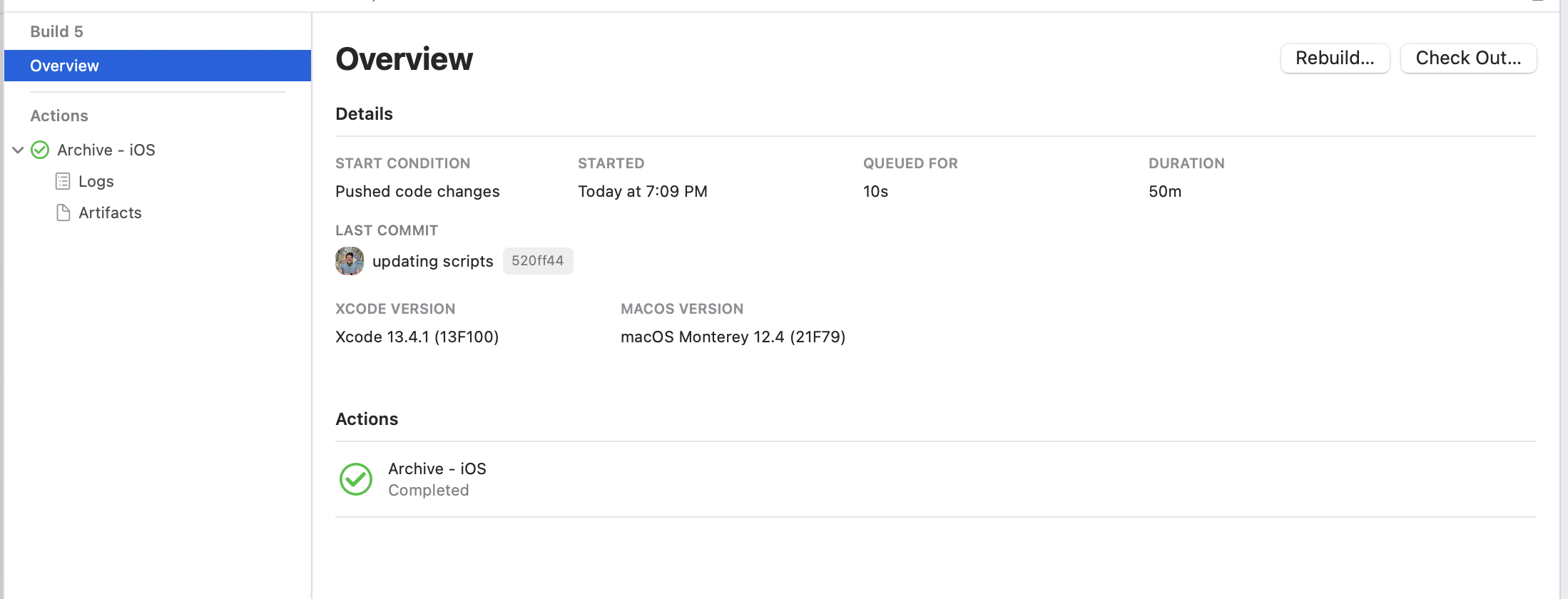
If all goes well it will look like the following after a successful build:
## Conclusion
Flutter makes it ease to build and deploy to multiple platforms and Xcode Cloud takes care of the signing for Apple platforms.
You can learn more about cd and flutter [here](https://docs.flutter.dev/deployment/cd).This skill teaches how to configure Xcode Cloud to build and deploy a Flutter iOS app to TestFlight and the App Store. It provides a step-by-step approach for preparing a Flutter project, adding CI scripts, and creating Xcode Cloud workflows. The guide focuses on automating dependency installation, prebuilding Flutter artifacts, and producing an unsigned iOS archive ready for Apple signing.
The skill walks through creating small shell scripts (post-clone/post-install) that Xcode Cloud runs to install CocoaPods and Flutter, run flutter doctor, fetch packages, run build_runner, and run flutter build ios --no-codesign. It shows how to open the iOS workspace in Xcode, create a Cloud workflow, and exclude macOS targets when not needed. Optionally it explains how to add a similar macOS script and workflow for desktop builds.
Do I need to sign the app in the CI script?
No. Use flutter build ios --no-codesign; Xcode Cloud handles signing when you configure the workflow and provisioning profiles.
What if my project already has generated code?
Still run build_runner in CI to ensure generated files are up to date; it avoids build-time failures on the cloud host.